Microsoft Build 2026: Windows 11 gets native Linux tools, an AI-powered terminal, and one-command dev setup
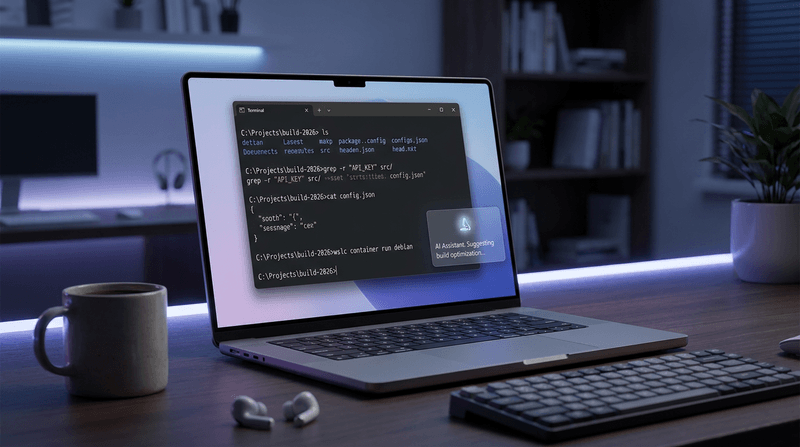
On June 2, 2026, Microsoft used Build 2026 to make one thing very clear: it wants Windows 11 to feel like a “first-class” developer platform — especially if your daily workflow includes Linux commands, containers, and (increasingly) AI assistance.
If you’ve ever bounced between PowerShell, WSL, Docker, and a half-dozen setup scripts just to get a laptop into a “ready-to-code” state… this is Microsoft trying to remove that friction.
The official announcement is here: Build 2026: Furthering Windows as the trusted platform for development.
The big shift: fewer workarounds, more “flow.”
For years, Windows development has often meant one of these compromises:
- You run Windows, but you basically live inside WSL.
- You run Windows, but your scripts are constantly “if Windows then…” conditional chaos.
- You avoid Windows entirely for dev work.
Build 2026 is Microsoft saying: let’s stop fighting the reality that developers like Linux tooling — and instead make it feel natural on Windows.
1) Coreutils for Windows: Linux-style commands, running natively
This is the sleeper hit of the announcements.
Microsoft is now shipping Coreutils for Windows, a set of familiar Linux-style command-line utilities (think ls, cat, grep, cp, mv, rm, and more) that run natively on Windows — no WSL required for the basics.
- Project link: microsoft/coreutils on GitHub
- Install via WinGet:
winget install Microsoft.CoreutilsWhy it matters
If you maintain cross-platform scripts (or work on a team that mixes macOS, Linux, and Windows), this reduces the “translation tax.” You can:
- Keep more scripts consistent across machines
- Reduce onboarding time for new devs
- Make CI and local dev feel more aligned
Two practical gotchas (so you don’t get surprised)
Coreutils on Windows is a huge win, but it’s not magic. Two real-world considerations from the project docs:
- Shell conflicts: some commands collide with built-ins/aliases in CMD and PowerShell. Your PATH order and PowerShell alias table can change which one runs.
- PowerShell version matters: the project notes PowerShell 7.4+ is required for full support.
If you’re still running older versions of PowerShell or managing multiple Windows machines, it’s worth bookmarking your own baseline checklist. (If you’re setting up a fresh machine, my essential software guide for a new Windows PC is a good starting point.)
2) WSL containers: a first-party Linux container workflow on Windows
Containers are not a “nice to have” anymore. They’re how modern dev teams ship.
Build 2026 introduces WSL containers, described as a built-in way to create, run, and manage Linux containers on Windows — with enterprise-friendly controls and visibility — with a public preview coming in the coming months.
- Track progress: microsoft/wsl on GitHub
Why it matters
A lot of Windows container setups today depend on third-party tooling and a bunch of “it works on my machine” tribal knowledge.
A first-party approach has three big implications:
- Less setup friction: fewer moving parts to install and troubleshoot
- More predictable dev environments: especially for teams that want consistency
- Better IT governance: policy-based enablement and visibility into what’s running
If you’ve ever lost half a day to a Windows update changing something low-level, you already understand the value of predictability. (Related: Windows Update woes for Windows 11 is why I’m always in favor of reducing “fragile” stacks.)
3) Intelligent Terminal: context-aware AI helps inside your terminal
Microsoft also announced an Intelligent Terminal (experimental preview) — essentially an attempt to bring “agentic” assistance into the terminal so you don’t have to keep context-switching to search, paste logs into a chatbot, or guess at the next fix.
- More details: Announcing Intelligent Terminal 0.1
The productivity angle
The promise is simple:
- When commands fail, you get help in context
- It supports multi-step tasks (not just one-off suggestions)
- It’s designed to keep you in the terminal instead of bouncing between tabs
The security angle (don’t ignore this)
AI inside the terminal is powerful — and it’s also a reminder that “agentic” workflows expand your attack surface. The more an assistant can do (run commands, modify files, touch credentials), the more important safety boundaries become.
If you want a sense of how quickly AI-assisted threats are evolving, check out ScamAgent and my breakdown of Bluekit, an AI-powered phishing kit. Different domain than dev tooling, same lesson: automation amplifies both productivity and risk.
4) Windows Developer Configurations: one-command dev environment setup
This is the other “quietly huge” announcement.
Windows Developer Configurations, powered by WinGet, aims to get you from afresh Windows install to “ready to code” in minutes. Microsoft describes a dev-config.winget configuration that installs core tooling (WSL, PowerShell 7, Git, GitHub CLI, VS Code, Python, and more) and applies dev-friendly Windows settings.
- Starter repo: microsoft/WindowsDeveloperConfig on GitHub
- WinGet
configuredocs: WinGet configure command
A typical workflow (simplified) looks like:
winget configure -f dev-config.wingetWhy it matters
If you’re a solo developer, it’s a “new laptop in an afternoon” upgrade.
If you’re a small business, it’s a step toward:
- Repeatable onboarding for contractors and new hires
- Fewer “mystery machine” differences between people
- Easier recovery when a device dies or gets replaced
And if you’re still clinging to Windows 10 on dev machines, Build 2026 is another nudge to modernize. Windows 10 stopped getting security support on October 14, 2025 — here’s my practical guide to what to do about Windows 10 end of life.
What I’d do this week (a practical test plan)
If you want to kick the tires without committing your whole workflow, here’s a low-risk way to explore Build 2026’s “developer-optimized Windows 11” direction.
- Install Coreutils for Windows and try a few scripts you normally run in WSL
- Create a small “known good” repo and test
grep, file piping, and path handling - If you use containers, watch the WSL containers rollout and plan a small pilot project
- If you try Intelligent Terminal, start with a non-sensitive project and avoid putting secrets in prompts
- If you’re setting up a new machine soon, test a WinGet configuration on a spare device or VM first

The real takeaway
Build 2026 isn’t about making Windows “more like Linux” as a vibe. It’s about making Windows less of a tax on modern development.
- Coreutils reduces command-line mismatches.
- WSL containers aim to reduce container tooling sprawl.
- Intelligent Terminal tries to reduce context switching when things break.
- Windows Developer Configurations reduces setup time and makes environments repeatable.
That combination is what makes Windows a more credible daily driver for dev work — especially for people who build across platforms, automate processes, and want local workflows that don’t feel brittle.
If you’re a Windows dev: which of these would make the biggest difference in your day-to-day — native coreutils, first-party container workflows, or an AI-assisted terminal? (Or are you still firmly team Linux/macOS?)
Comments
Post a Comment